
Understand the sync status icons to help troubleshoot your employee sync.
Green flag: Ready to sync, recommended updates in Ocerli may be listed
Orange warning triangle: Validation Failed, must update employee fields in either PeopleHR or Ocerli
Blue Swirl Circle: New record
Pencil icon: Edit employee record in Ocerli
1. You can select 'Sync Employees' once you have completed your connection

2. If you hover over each icon you will see a description
The Green Flag indicates that there are some recommended changes to be added to the employee screen.
In this screenshot, the Social Ref, TIN Ref, and Employee Bank Account Tax Rate are all recommended after syncing.
Some employee fields in Ocerli do not exist in PeopleHR and therefore you must update these fields in Ocerli after syncing your employees.

3. For the employee records that are selected you can apply these
For the employee records with the orange warning triangle, you are unable to apply these without making corrections.

4. In this example: The Orange warning triangle indicates that validation has failed, and you are unable to import this employee until changes are made in the employee screen in People HR
This error shows: Employee: Title is a required field
You must go to PeopleHR and update the Title for this employee

5. To update this in PeopleHR, please navigate to Employees in PeopleHR
Select the relevant employee
Select Personal
Update the Employee's Title by selecting this

6. In this example, the employee has failed validation
The employee's Title is required- You must update this in PeopleHR
The employee's Employment Type is required- You must update this in PeopleHR
For the recommended items:
Some employee fields in Ocerli do not exist in PeopleHR, and therefore, you must update these fields in Ocerli after syncing your employees.

7. To update these fields, please navigate to Employees in PeopleHR
Select the relevant employee
Select Personal
Update the Employee's Title by selecting this

8. Scroll down to the bottom of the employee screen
Update the Employment Type Field

9. In this last example we can see that the occupation code is a required field in Ocerli. Occupation code is now mandatory for all Guernsey employees.
To update this field, please select the pencil icon next to the employee's name

10. Please then select Edit at the bottom of the screen

11. Please then enter the employee's occupation code
We would also recommend updating any empty employee fields within the employee screen. Such as tax reference, social reference, and working hours.
Once you're happy, please SAVE your changes at the bottom of the screen.

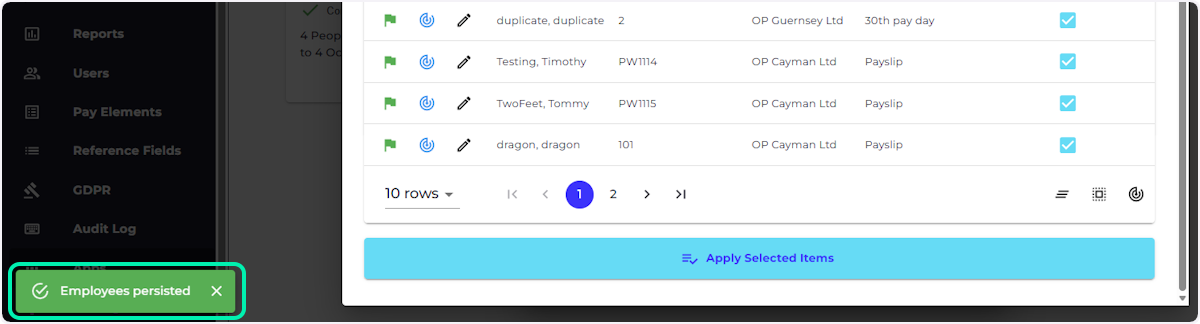
12. Once all employee records show a green flag and you are happy with the changes
Please select Apply Selected Items to import these into Ocerli

13. This warning notifies you that even if employee filters are applied at the top of the page, all employee records that are selected will be included in the sync process.
If you're happy, please select YES

14. A green text box will appear at the bottom left of the screen which indicates that your employee's have been successfully synced.
Click HERE to view our PeopleHR Icons Guide
Click HERE to view our guide on Ocerli & PeopleHR set-up
Click HERE to view our guide on Ocerli & PeopleHR Field mapping