
Once a user has been added to your database, they will automatically be sent an email from no-reply@ocerli.com. You can share this guide as a PDF with employee's by clicking here.
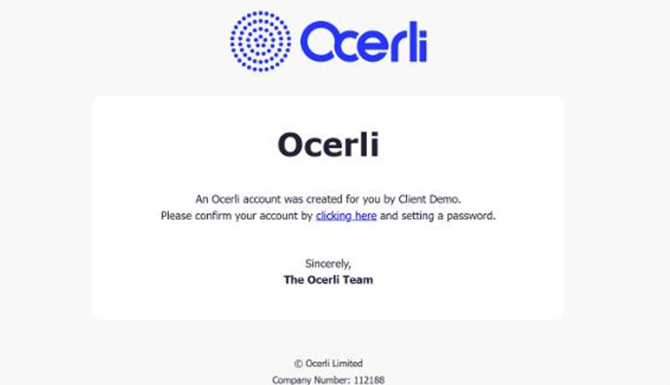
This provides you access to a secure Ocerli payslip portal, your central location for viewing payslips. You will receive an email invite to your account.
See example below.
Please make sure you click on the link in the email to create your password as soon as possible (see steps below)
1. Please select ‘Clicking here’
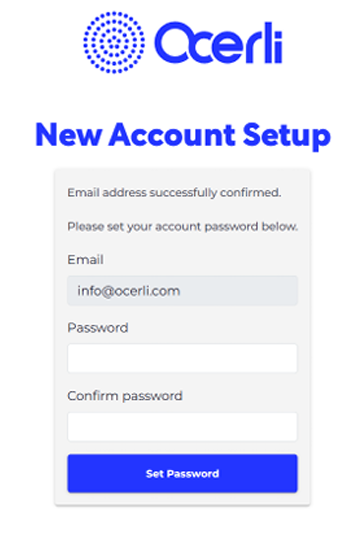
2. You can now set up your password, once completed please select ‘Set Password’.
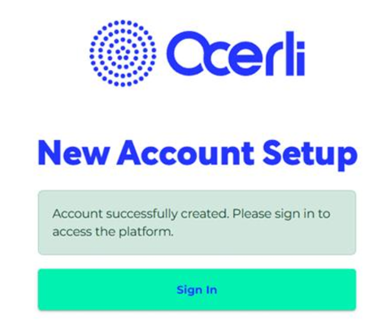
• You can manage your account settings and your account data (e.g. email & password and MFA) by clicking on the account icon in the top right of the portal.
• This secure account is owned by you and can be accessed during your employment.
• We (as your employer) remain the data controller of your payroll information stored in the app and your main contact for any payroll issues.
Already have an Ocerli account?
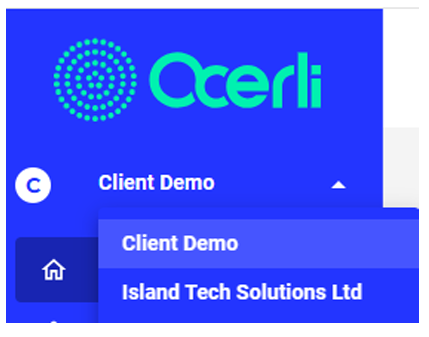
If you already have an Ocerli account linked to the same email address and used for another database, you can log in using the same email address and password.
You will have a drop-down menu, similar to the screenshot below, which you can view by navigating to the top left of the screen to switch between databases.
FAQs - Portal Access & Login Issues
1. I can’t log in. How do I reset my password?
Use the password reset link below:
Ocerli - Forgot your password?
If you did not receive the reset email, please:
• Check your spam or junk folder
• Confirm you are using the correct email address linked to your Ocerli account
• Look for an email from no-reply@ocerli.com
Still having issues? Please contact your employer or payroll processor for assistance.
2. My account is locked – what should I do?
The lockout message is displayed because an incorrect password has been entered too many times. The lockout will last for approximately 5-10 minutes before you can attempt to log in again.
If the message persists, please reset your password once again.
3. Is Two-Factor Authentication (2FA) required? How do I set this up?
2FA can be manually turned on via the account icon (top right of the App) for any user of the system, including employees.
Please click here to view a step-by-step guide on how to set up 2FA.
4. I cannot find my 2FA codes- What should I do?
It is the user's responsibility to note their recovery codes when setting up 2FA. For security reasons, the support team cannot reset any accounts.
You will need to reach out directly to your employer or payroll processor and request that they delete your user record from the user's screen and re-add you.
5. I haven't confirmed my email address and cannot find the email verification link. What should I do?
If you cannot find your confirmation email, please check your spam or junk folder. If it is still not there, you would need to contact your employer or payroll processor and ask them to delete and re-add you as a user.