Understand the Difference Between Removing a User and Revoking Payroll Processor Permissions.
When an employee leaves your business, you may want to completely remove their access to the Ocerli payroll platform. In other cases, you may only want to remove their payroll processing permissions while still allowing them to access their payslips.
This guide explains the difference between the two options and which user roles can perform these actions.
Remove a User
Removing a user completely revokes their access to your Ocerli database.
What happens when a user is removed?
- The user can no longer log in to Ocerli
- They lose access to payroll processing and administrative features
- They can no longer access organisation data
- If their payroll processor account was linked to an employee record, they will also lose access to the My Payslips area
When should you remove a user?
Use this option when:
- An employee has left the business
- Access to Ocerli should be fully removed
- The user should no longer have access to payslips or company data
Revoke Payroll Processor Permissions
Revoking payroll processor permissions removes access to payroll administration features while still allowing limited employee access.
What happens when permissions are revoked?
- The user can still log in to Ocerli
- They can still access the My Payslips area (if linked to an employee record)
- They can no longer process payroll or access payroll administration features
When should you revoke permissions instead?
Use this option when:
- A payroll processor no longer requires payroll access
- The user still needs access to their payslips
- You want to keep the employee payslip portal access active while removing admin permissions
Which User Roles Can Remove Users or Revoke Permissions?
The level of access depends on the user's role within Ocerli.
| Role Can | Can Revoke Access For |
|---|---|
| Owner-level users | Any payroll processor or payslip portal user |
| Administrator-level users | Organisation administrators, managers, and employee payslip portal users |
| Organisation Administrator-level users | Managers and employee payslip portal users within their managed organisation/s organisation |
| Manager-level users | Employee-level users within their managed organisation/s |
How to remove a user
To remove a user, head to the users page of the main menu, then simply click the bin icon to the left of the user you wish to remove. This will immediately revoke their access to your database.

How to revoke payroll processor permissions
To revoke the payroll processor permission for a user, head to the users page of the main menu, then click the pencil icon next to the user you wish to edit.

In the role column, click the "x" icon next to the user's role.
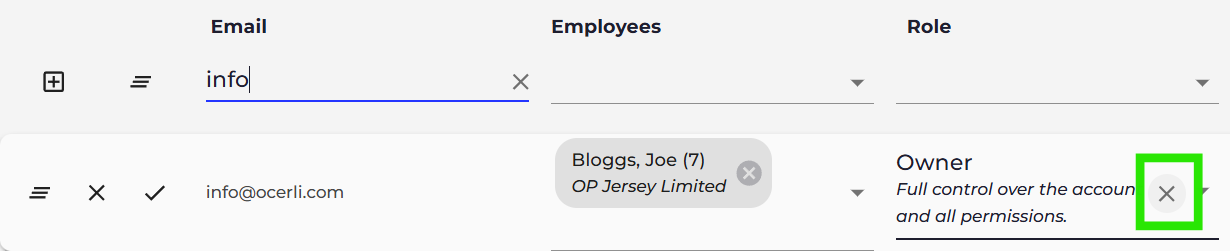
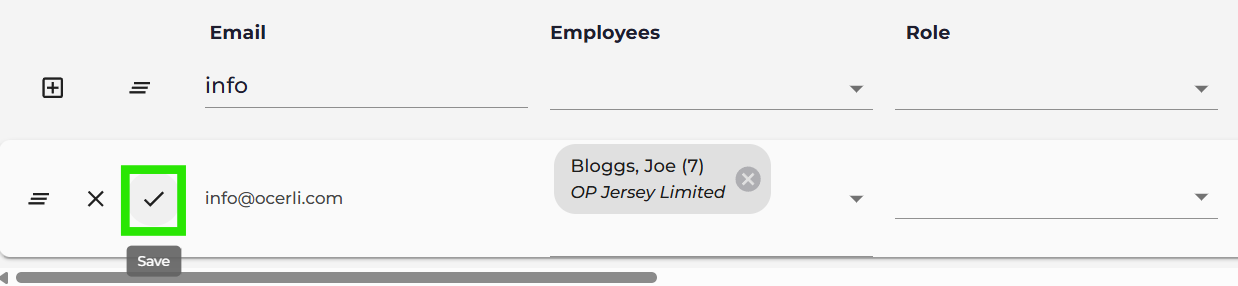
Then click the tick to the left of the user's email address to save your changes.